As requested by some attendees at the WordCamp Toronto 2009, I’ve uploaded my presentation slides: "Various Ways of Using WordPress." The slides can be downloaded at SlideShare and I’ve also embedded them in this post. If you missed the event, this post is a quick recap of my presentation. You will learn how I use WordPress to manage my sites: Web Designer Wall (blog), Best Web Gallery (gallery), and IconDock (eCommerce/blog). Get ready and learn more about WordPress theme coding.
Things You Should Know:
Example 1: Using WordPress As A Blog (WebDesignerWall)
Displaying A Post Image Using Custom Fields
The following sample code will show you how to use custom field to display a post image as seen on Web Designer Wall.

To add a custom field, go to Admin > Write a new post, scroll down to find the Custom Fields panel, enter the custom field name (Key) and the Value (the URL of the image location).

Open the theme index.php file, in between The Loop, enter the following code where you want to display the custom post image.
<?php $postimage = get_post_meta($post->ID, 'post_image', true); ?>

<?php if ($postimage != "") { ?>
  <a href="<?php the_permalink() ?>"><img src="<?php echo $postimage; ?>" /></a>
<?php } ?>
Displaying a Dynamic <title> Tag
The following sample code will show you how to display a dynamic <title> tag depending on the page the visitor is viewing. For example: if it is home, display the blog name; if it is 404, display "404 Not Found"; and so on.
<title>
  <?php if (is_home()) {
    echo bloginfo('name');
  } elseif (is_404()) {
    echo '404 Not Found';
  } elseif (is_category()) {
    echo 'Category:'; wp_title('');
  } elseif (is_search()) {
    echo 'Search Results';
  } elseif ( is_day() || is_month() || is_year() ) {
    echo 'Archives:'; wp_title('');
  } else {
    echo wp_title('');
  }?>
</title>
Example 2: Using WordPress As A Gallery (BestWebGallery)
Managing Posts With Custom Fields
There are three custom fields: thumb, large image, and url.
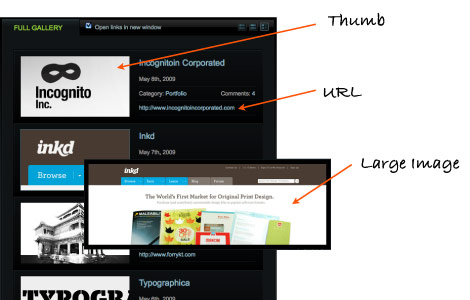
To make life easier, I use the plugin Custom Write Panel to manage the posts. With this plugin, I can create a custom write panel where all custom fields are in one panel.

Theme Switcher
I use the Theme Switcher plugin to allow visitors to choose their layout preference: thumbnail, large preview, and details mode.

Below is the overview of the themes. The "master" theme is the thumbnail mode which is the default theme. It has most of the template files: CSS, JS, images, and PHP files, etc.
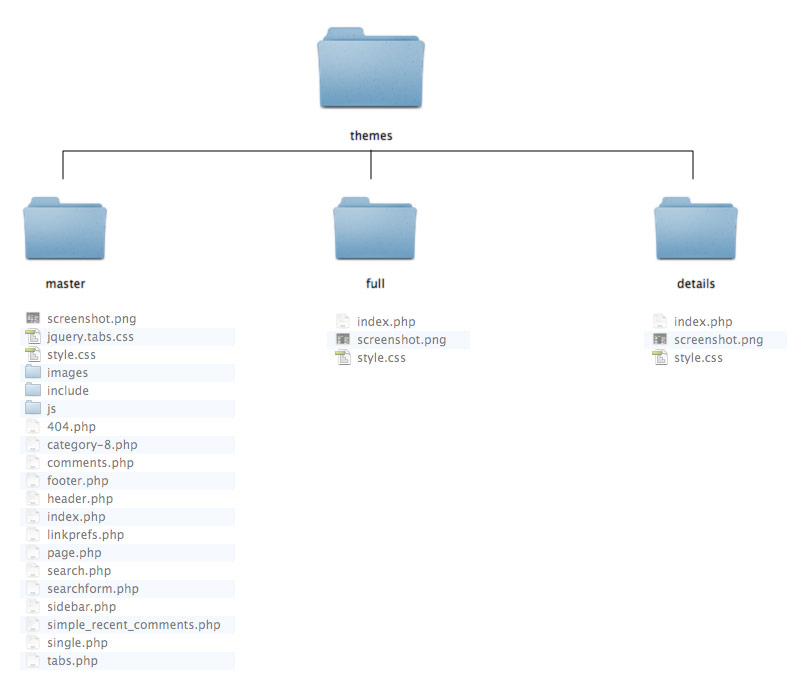
Since the header, sidebar, footer, page, 404, and single template file are the same, I use PHP include to get the files from the "master" theme.
Below is a sample code of the "full" and "details" theme index.php file.
<?php if (is_page()) {
  include ('./wp-content/themes/master/page.php');
} elseif (is_404()) {
  include ('./wp-content/themes/master/404.php');
} elseif (in_category(8)) {
  include ('./wp-content/themes/master/category-8.php');
} elseif (is_single()) {
  include ('./wp-content/themes/master/single.php');
} else {?>

  <?php include ('./wp-content/themes/master/header.php'); ?>
    <div>. . . display posts (The Loop here). . . </div>
  <?php include ('./wp-content/themes/master/sidebar.php'); ?>
  <?php include ('./wp-content/themes/master/footer.php'); ?>

<?php }?>
The style.css file in the "full" and "details" theme is used for the theme naming purpose.
/*
  Theme Name: Details Mode
*/
Example 3: Using WordPress As A Shop (IconDock)
Displaying The 5 Latest Posts
The following tutorial will demonstrate on how to display the 5 latest posts as seen on the homepage of IconDock.

I use query_posts to get the 5 latest posts from the database. Notice I have a "loopcounter". If the counter is less than or equal to 1, display the full content (which is the first post). Else, display the last 4 posts in a <ul> list.
<?php query_posts('showposts=5'); ?>

<?php if (have_posts()) : ?>
<?php while (have_posts()) : the_post(); $loopcounter++; ?>
  <?php if ($loopcounter <= 1) { ?>
  <div> first post content </div>

  <ul class="recent-post">
  <?php } else { ?>
    <li> last 4 post links </li>
  <? } ?>
<?php endwhile;?>
  </ul>
<?php else : ?>
<?php endif; ?>
Conditional Tags
On the IconDock blog page, notice there are two version of post data (under the blog post title)?

I use the Conditional Tags to check what category the post is stored in. If the post is stored in category 28 (which is the free icon category), display the credits and rating stars. Else, display the regular post data.
<?php if (in_category('28')) { ?>
  <p>credits</p>
  <?php if(function_exists('the_ratings')) { the_ratings(); } ?>
<?php } else { ?>
  <p>regular post data</p>
<? } ?>
Managing Free Icon Posts With Custom Fields
Again, I’m using custom fields to manage the free icon posts.

The plugin I use to manage the posts is Flutter. It is basically similar to Custom Write Panel, but for newer version of WordPress.

Getting Rid Of The Category Base
By default, WordPress requires a category base in the URL structure. To get rid of that, create a blank Page and a custom Page template to query the posts from the category. Visit the Icon Blog and Free Icons page to see the result.
Below is a sample code of a Page template. I use query_posts to get posts from category 28, which is the free icon category. I set the posts_per_page -1, this means get all posts.
<?php
/*
Template Name: Template - Free Icons
*/
?>

<?php get_header(); ?>

<?php $page_num = $paged;
if ($pagenum='') $pagenum =1;
query_posts('cat=28&posts_per_page=-1&paged='.$page_num); ?>

<?php if (have_posts()) : ?>
<?php while (have_posts()) : the_post(); ?>
  <div> display post here </div>
<? endwhile; endif; ?>

<?php get_sidebar(); ?>
<?php get_footer(); ?>
Then create a blank Page and assign the Page template to it.

WP E-Commerce Plugin
The shopping cart at IconDock is powered by WP E-Commerce plugin. Head over to Instinct website for more details or download the plugin.

The current version I’m using now is modified by the developers at Instinct. I’ve heard they are working on a template engine which will be release soon. The template engine will work similar to the WordPress template tags. So, look out for their new releases.
More WordPress Examples
Here are five great examples of using WordPress for different purposes.
45royale Inc.

Creative Depart

Typographica

FlickOut

Jeff Finley

As promised at the conference, below is the code that Jeff Finley use to display the related posts with custom field. The plugin he used is Yet Another Related Posts Plugin. This code should go to the single.php file.
<?php $results = $wpdb->get_results(yarpp_sql(array('post'),array())); foreach ( (array) $results as $_post ) : ?>

  <a href="<?php echo get_permalink($_post->ID); ?>"><img src="<?php echo get_post_meta($_post->ID, 'post_img', true); ?>" /></a>

<?php endforeach; ?>
Presentation Slides
57 Comments
Comments are closed.
John Leschinski
Enjoyed the presentation. Good to see I’m doing things right if nothing else.
Andrew Pryde
Thanks allot. I do allot of this already but I am interested in using WP as an e-commerce platform :)
@Prydie
Tommaso Baldovino
Great post, thanks for sharing your work.
Kevin
Thank You! Keep up the WP Custom articles.
Cheers!
Paul Morrison
Hey Nick,
Great presentation at WCT This year, I was happy to make it. I’m sorry I didn’t get an opportunity to come an introduce myself, but it was quite nice to see that alot of the stuff I had planned on talking about, you covered as well.
I hope to see you next year, perhaps we could collab on a presentation or something.
And thanks for sharing your slides with everyone.
João Henrique -Designer from Brazil
Cool!
Tks!
Ritchie
WOW! very nice. Custom Write Panel and Flutter are the best.
Elizabeth K. Barone
One of my favorite things to do is seeing what I can do with WordPress when I want to build a new site. Please keep posting articles about WordPress customization! Your tidbits are so inspiring and enlightening.
The Frosty @WPCult
Looks like you gave a great presentation. Wish I could have come up from LA.. But I guess your slide’s and post will do just fine.
tukang nggame
greaat…
thanks for share, i’ll bookmark this post
Chris
Very nice and useful post! Thanks for sharing!
Robert Dall
Dam I wish I could have attended this wordcamp. I missed the last one that was held in whistler. (Which is why I missed it sadly I couldn’t get to whistler for less then $100)
Brendan Sera-Shriar
Nick, thanks for coming out! You rocked!!!
I posted your presentation on http://www.phug.ca/wordcamptoronto
carreco
Votre site est magnifique graphiquement et riche dans son contenu.
- Toby -
Thanks nick for this tutorials Big help
Marijan Šuflaj
As you showed, WordPress can be used almost everywhere :).
Nice article and good presentation.
Ricardo lu
really appreciated that u upload ur slides!!
Raymond Selda
Very nice tips here especially the use of child themes. Thank you
Abbas
Weird, I thought you would be using some simple methods. But your using the same codes I am :P
Sklep Wędkarski
Thanks for another great article
graphicsbg
look at site
Angel Reyes
Woow thanks Nick for your wonderful help in the WordPress word.
A pleasure read your blog.
wpdigger
I really like this tutorial and will be try.
Thanks nick for this tutorials.
Peter J Harrison
Hi,
Some nice examples here, will come in handy! I especially like your presentation notes, would be great if you where presenting at WordCamp UK 2009 (www.wordcamp.org.uk) which is taking place in July.
Regards
topwebpost
visit new digg type design site topwebpost.com here you can add your topwebpost
thanks
php coder
very good
Ray Acosta
Hi Nick! Thanks for shearing!
Let me tell you that You´re very talented! I mind it! I think that you have a beautiful taste for design and an incredible understanding of coding with WordPress!
How you can do that? I´m a designer as well but not coder nor programmer. So, congrats again!
Ok, about this post, I tried the Custum Field technique but it didn´t work. As a Designer if a miss a semicolon, a perior, anything can create unexpedted results.
Can you (or anyone) give some light in this one:
Background:
In the example of displaying a Post Image Using Custom Fields you write the word post_image under the Key field in the Edit Post in the administrator.
But in the code, I saw a PHP variable called: $postimage.
I don´t get it. Why the variable it´s different? WordPress has a reserved word to postimages that you´re invoking?
I don´t understand the Codex too much. It´s like ActionScript3.0 help. They use programmers jargon like:
“If you want you can import the MovieClip Class and invoke it´s methods and properties”… A-ha, then what? How can I build a custom preloader? Reading things like: “you could create customs properties”… A-ha… so?
He-he, well, I feel that I’m in the same page here. In the Codex about Custom Fields it talks about meta-data nor inserting a image in our post. So, I’m kind of lost here.
I appreciate some light about it.
Many thanks,
R
cennetevi
these are awesome!
thanks for putting in the effort to get this list together http://www.cennet.gen.tr
Derek Hildenbrand
WordPress is a fantastic CMS for basic websites… but with all the new features coming up it looks like their entering a whole other level
Luby
Amazing job. Thanks for sharing.
bagsin
A pleasure read your blog.
Barbara80
Links to stuff we talked about:Apologies again for problems with audio quality, including, but not limited to, my cat who kept opening the creaky door. ,
Mamaduka
Hello, I really like this tutorials. I’m going to use WP for my online music magazine. If there is some tutorials about this please write link.
vincentdresses
喜欢你们的设计与技术,常来看看
sbobet
I pity to see it soon. Your site has articles with much of substance.
Web Design
very cool thank you
gclub
Thank for your website I love gclub content and want you to see my website too.
แทงบอล
As you showed, WordPress can be used almost everywhere :).
Nice article and good presentation.
แทงบอลออนไลน์
A pleasure read your blog.
Henry Peise
Don’t you attract by the elegant white iphone 4? But its likely to release untile next summer! What’s worse, it is said it may not release at all! What a pity!
Juno Mindoes
It’s a great post. But i would like to know more about the iphone 4 white imformation.
mikwillson
That is to be expected in a long-term, high-risk project like ours. So, we turned to the blogging community for help – and got it! We have published our problems, and the community responded with results!cheap ugg boots
Ben
Thank for your website I love gclub content and want you to see my website too
altın çilek
A pleasure read your blog.
dexx
Different thinking, contains a problem to produce several possible solutions.
โมนาวี
good solution, thanks for share.
complex 41
These are really stunning, there are even some sites that are new to me. All the colour schemes complex 41are definatly brave but I really think they work to make the sites eye catching and engaging.
complex41
And then he handed you the thirty-five 45
Best Retail Stores
Thanks for sharing the time to your blog that, I feel strongly about it and love learning more on that topic.
snow blowers on sale
Thank you for great information. I will come back to your website again. Thanks you very much.
Web design automaton
Great memories at this camp and meet up with alot of amazing wordpress bloggers. thanks for the post.
Snowblowers for sale
This can be a intelligent blog. I indicate it. You’ve a lot knowledge about this issue, and so much passion. You also understand how to produce folks rally behind it, of course from your responses. Youve received a design here thats not too flashy, but makes a statement as large as what youre saying. Fantastic position, certainly.
ThaiMNV
Very very clear!! .. Thanks for your share!
monavie
Thx so much for share. You can contact us at โมนาวี
monavie
Thx so much for good artical . You can good contact to โมนาวี
yates en Ibiza
You’ve a lot knowledge about this issue, and so much passion. You also understand how to produce folks rally behind it, of course from your responses. Youve received a design here thats not too flashy, but makes a statement as large as what youre saying. Fantastic position, certainly.
DymoLabels
hi
i really like this code
i needed it badly this code
thanks for sharing
keep it up